



By moving our agent work into VS Code and opening one Claude window per task, we went from running one agent at a time to four in parallel on the same project. Here is the setup.
Why we tried it
Cursor allows one Claude window, docked to one side of the screen. Getting a second one open meant hacking the interface, so every task queued behind the last. We had avoided VS Code for months on the assumption it would be the weaker tool. Cursor is built on top of it.
How to run four Claude windows on one screen
Four Claude windows sit open at once, with one task in each. On a recent client project that meant one window building the landing page, one uploading it to the server, one on the page design, and one generating images for a blog post. Each window holds its own conversation. Nothing waits its turn.
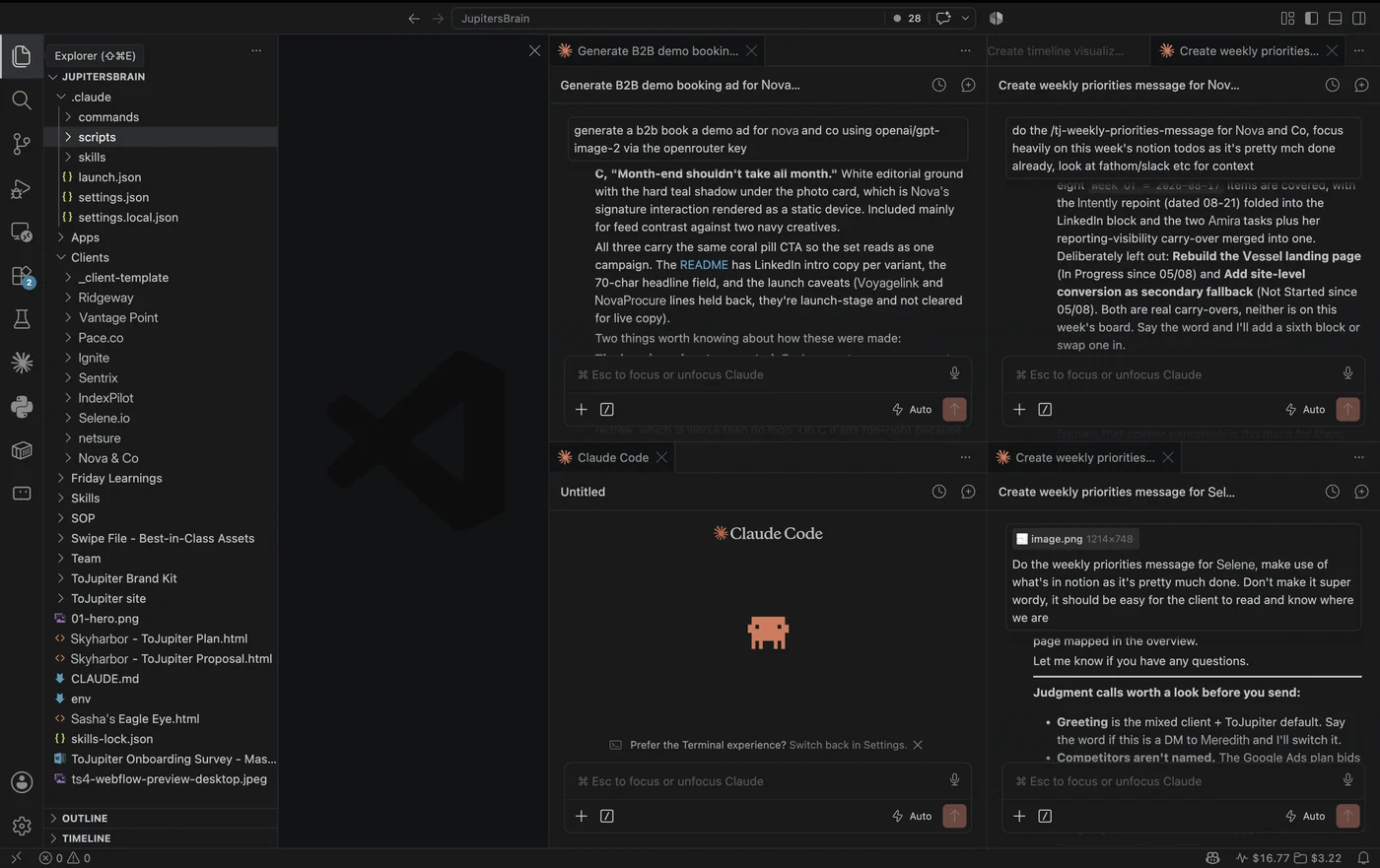
The whole setup takes about two minutes to build.
- Download VS Code and open the folder your project lives in.
- Open the Extensions panel, the four-squares icon in the left sidebar, and install the official Claude extension. Add the official Codex extension if you want both tools in the same workspace.
- Open a Claude window and give it your first task.
- Open a second window and give it something unconnected to the first. Run them together and see whether working in parallel suits you.
- Put whatever your agents keep needing to be told into a file inside that folder. A client brief, tone of voice notes, a checklist you repeat.
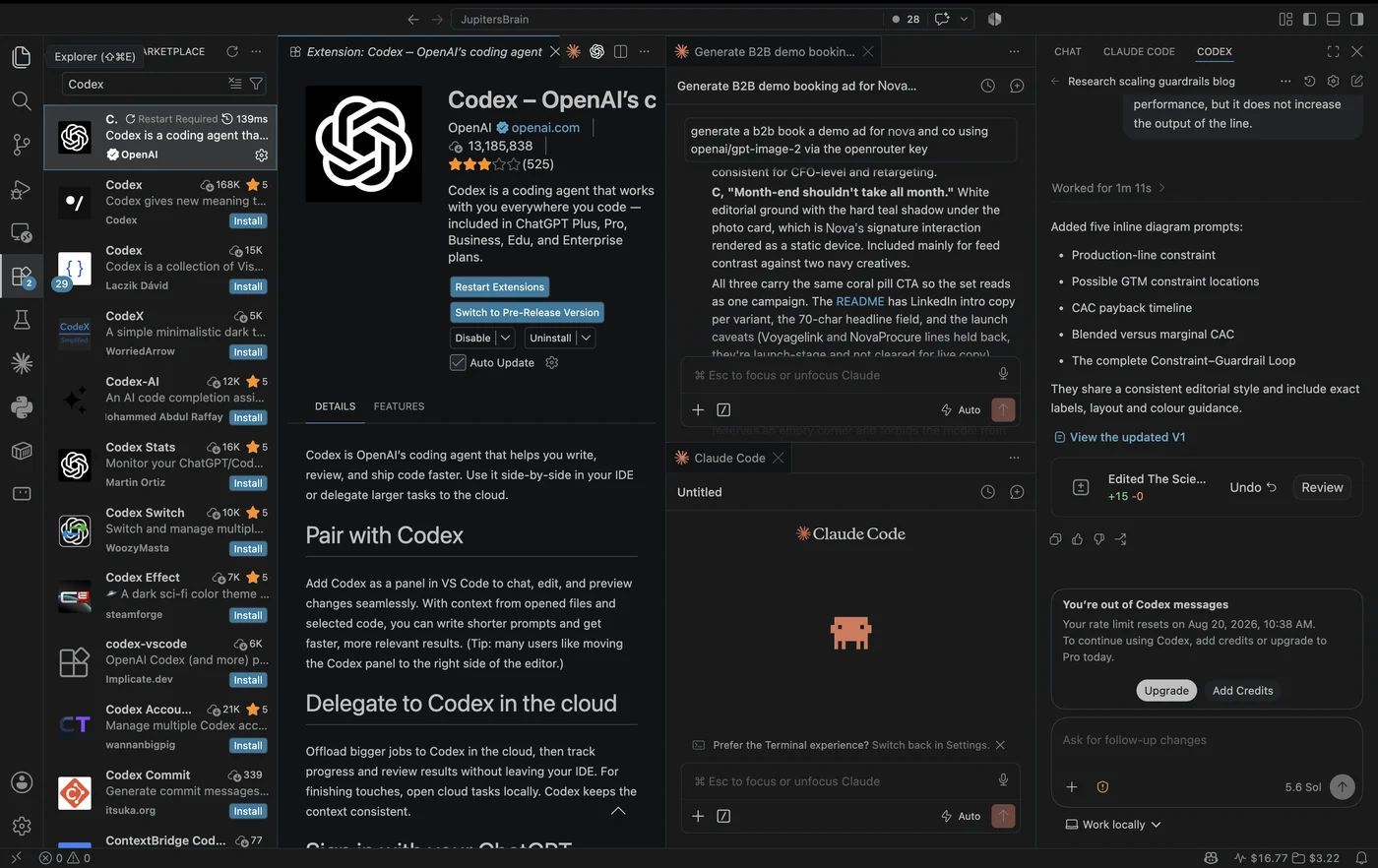
The fifth step is the one that changes how the whole thing behaves. Every extension reads the same open folder, so an agent opened in any window starts with that background already loaded. Ours holds client context, brand notes and saved skills. Open a Codex window on a blog post that Claude wrote and Codex has none of that chat history, yet it reads the files on screen and everything else in the folder.
One more habit worth copying is the browser preview, since "open with browser" renders an HTML file straight from the file tree and you can screenshot the result back into the chat that built it without leaving the window.
What changed
- Four tasks now run at once, so a landing page build no longer stops while its images are generated.
- We stopped paying for Cursor. Its value is the models it ships with, and we bring our own agents, so we were paying for something we never touched. VS Code itself is free.
- Adding a second AI tool cost us one extension install. Codex went into the same workspace with no separate setup behind it.
- We are only a fortnight in, and we have not stress-tested what happens when several agents write to the same files at once. We also have not found a way to bring ChatGPT image generation into the same workspace, which is the gap we would most like closed.
Why it works
- The interface was the bottleneck all along. One window caps you at one task no matter how capable the agent is.
- Because context lives in files, the windows become disposable. Hit your usage limits, sign in with a second account, and carry on with nothing lost, since nothing you needed was living in the conversation you closed.
- Four visible panes show you which task has stalled. Inside a single chat you only ever see the one in front of you.


